Like many of you, I’m still figuring out where AI actually fits in my day-to-day workflows. And honestly, there’s a bit of FOMO involved. I keep seeing people use it for things I wouldn’t have thought possible, and I wonder: could I do that too? Spoiler: yes. This is how it went.
Custom visuals were one of those things. I’ve been seeing them pop up everywhere lately — people building them for the Power BI Dataviz Championship, others talking about using AI to accelerate the development. So I thought: let’s find out. Can someone with no prior custom visual experience ship something useful in under 20 minutes with a bit of AI assistance?
I set an easy goal: build a status banner that shows a contextual message with different styles (info, warning, success) driven by a DAX measure.
> 💡 Tip: Something like a built-in card with status as style presets.
What I didn’t expect was that setting up the environment would take longer than building the actual visual.
The Environment — What You Need
Microsoft has official documentation for setting up the development environment. Set up your environment for developing a Power BI visual — Microsoft Learn
In theory, you install a few things and you’re done. In practice, on Windows there are some details the docs assume that can catch you off guard.
You need:
- PowerShell 7 — pbiviz v7 uses
pwshinternally. If you only have PowerShell 5 (the Windows default), some operations may fail. Install it first:
winget install Microsoft.PowerShell
- Node.js (LTS) — From nodejs.org, download the
.msiinstaller. Make sure the «Add to PATH» option is checked during installation. - npm — Comes bundled with Node.js.
- pbiviz — The Power BI Visuals tooling. Installed via npm.
Just to check everything is fine run this command in a terminal and if they return the versions you are good to go.
# Verify Node
node -v

# Verify npm
npm -v

# Install pbiviz
npm i -g powerbi-visuals-tools@latest

# Verify pbiviz
pbiviz --version
That’s it for the standard setup.
Things That Tripped Me Up — May Not Happen to You
This section covers specific issues I ran into in my environment. Your setup may be completely fine.
PowerShell blocking npm
Windows execution policies can block npm scripts in PowerShell. The error I got:
npm : The term 'npm' is not recognized as the name of a cmdlet...
CategoryInfo: CommandNotFoundException
You can unblock it with:
Set-ExecutionPolicy -ExecutionPolicy RemoteSigned -Scope CurrentUser
Alternatively, just use CMD instead of PowerShell for npm/pbiviz commands — execution policies only apply to PowerShell.
pbiviz not recognized inside VS Code terminal
If you use VS Code as your editor (which is highly recommended), the integrated terminal may not inherit the full Windows PATH. Symptom: pbiviz works in an external terminal but not in VS Code’s.
The fix was adding this to VS Code’s settings.json:
"terminal.integrated.env.windows": {
  "PATH": "C:\\Program Files\\nodejs;C:\\Users\\YourUser\\AppData\\Roaming\\npm;${env:PATH}"
}
This makes VS Code’s terminal recognize node, npm and pbiviz without needing external terminals.
To be honest, I had no prior knowledge about PATH configuration or any of the issues I found, all of them ended up being resolved with Claude’s help.
The Workflow — pbiviz + Claude + Claude Code
This is where things get interesting.
Once the environment is ready, the development flow for Power BI Desktop was something like this:
- Create the project with
pbiviz new - Ask Claude to generate a specification document for the visual
- Claude Code reads the spec and implements the changes in the project
- Package with
pbiviz packageand import into Power BI Desktop
1. Create the project
pbiviz new statusBanner
This generates the full project base: src/visual.ts, capabilities.json, styles, webpack config — everything ready to go.
2. Claude generates the spec in Markdown
Instead of writing code directly, I used Claude to generate a Markdown document with the visual specification, for example, one of the key decisions captured in this document was the icon library — Microsoft Fluent System Icons, which fits naturally with the Power BI design language.
The result is a .md that acts as an executable spec for the visual. The advantage: I can review it, tweak it, and version it before touching a single line of code.
3. Claude Code implements from the MD
With the spec ready, Claude Code (the VS Code extension) reads the markdown and applies the changes directly to the pbiviz project.
4. Package and import
In order to be able to import the visual to our pbix we have to package it.
# Package the visual
pbiviz package
# → generates dist/statusBanner.pbiviz
In Power BI Desktop: visualizations panel → ... → Import a visual from a file → select the .pbiviz.
>⚠️ Warning: Every change you’d like to make requires repacking the component and reimporting the visual.
The Result — Status Banner
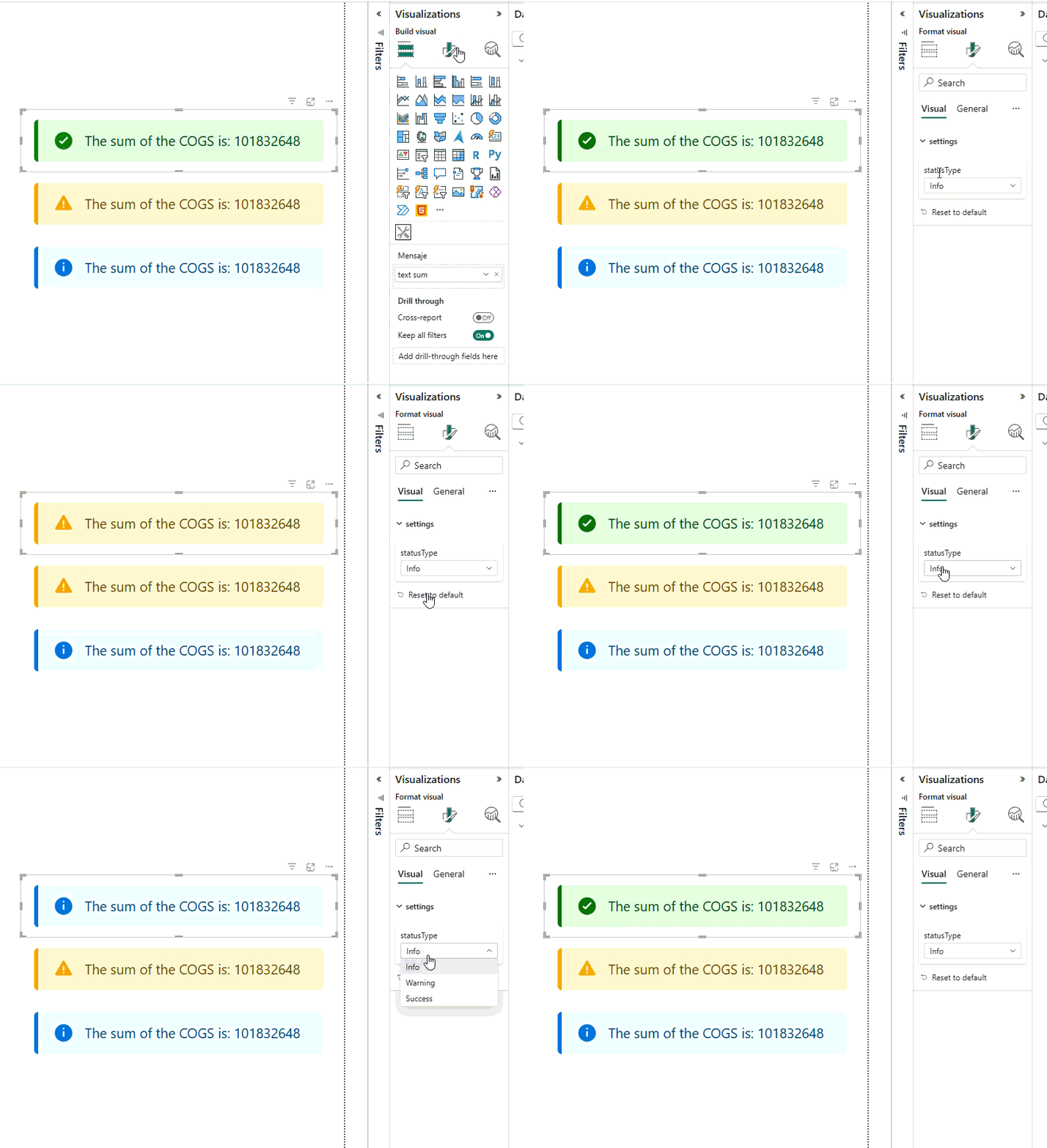
The final visual takes a DAX measure for the message text. The alert type (Info, Warning, Success) is selected directly from the Power BI Format Pane.
The DAX measure is plain text:
Status Message =
"Closing data updated to " & FORMAT(MAX(Closings[Date]), "MMMM - YYYY")
And from the Format Pane you pick whether that message renders as Info, Warning or Success. No DAX changes needed.
Extra visual, a custom dropdown filter
Once the setup is ready, while I was preparing a coffee I had a voice chat with Claude to generate an md file with the instructions to make a custom visual for a dropdown filter, that had a minimalistic style with some accent, icon and a searchbar included. In the meantime, while we had our daily meeting, I let Claude Code work (approx ~ 7′) this is the result.

Closing Thoughts
The setup is the hardest part. Once the environment is working, building a visual is more approachable than it looks.
This workflow used Claude and Claude Code, but the same approach works with any AI-assisted development tool — GitHub Copilot, Cursor, or any agent that can read a markdown file and write code. The key idea is the spec-first approach, not the specific tool.
What I liked most about the Claude workflow: separating the spec (the MD) from the implementation. You think through the visual first, document it, then build it. It’s not the typical «generate me the code» flow — it’s closer to working with a developer who writes a technical document first and then implements it.
If you want to get started, the Microsoft documentation is still the right entry point. Everything else is exploration.
 PBI Home
Deja un comentario